Organize 100+ Projects Like a Pro
- Needlecast
- Features
- April 17, 2026
Table of Contents
Managing multiple projects can quickly become overwhelming. Between work repositories, personal projects, experiments, and dependencies, it’s easy to lose track of what you’re working on. Needlecast solves this with its intuitive project tree and powerful search capabilities.
Color-Coded Groups
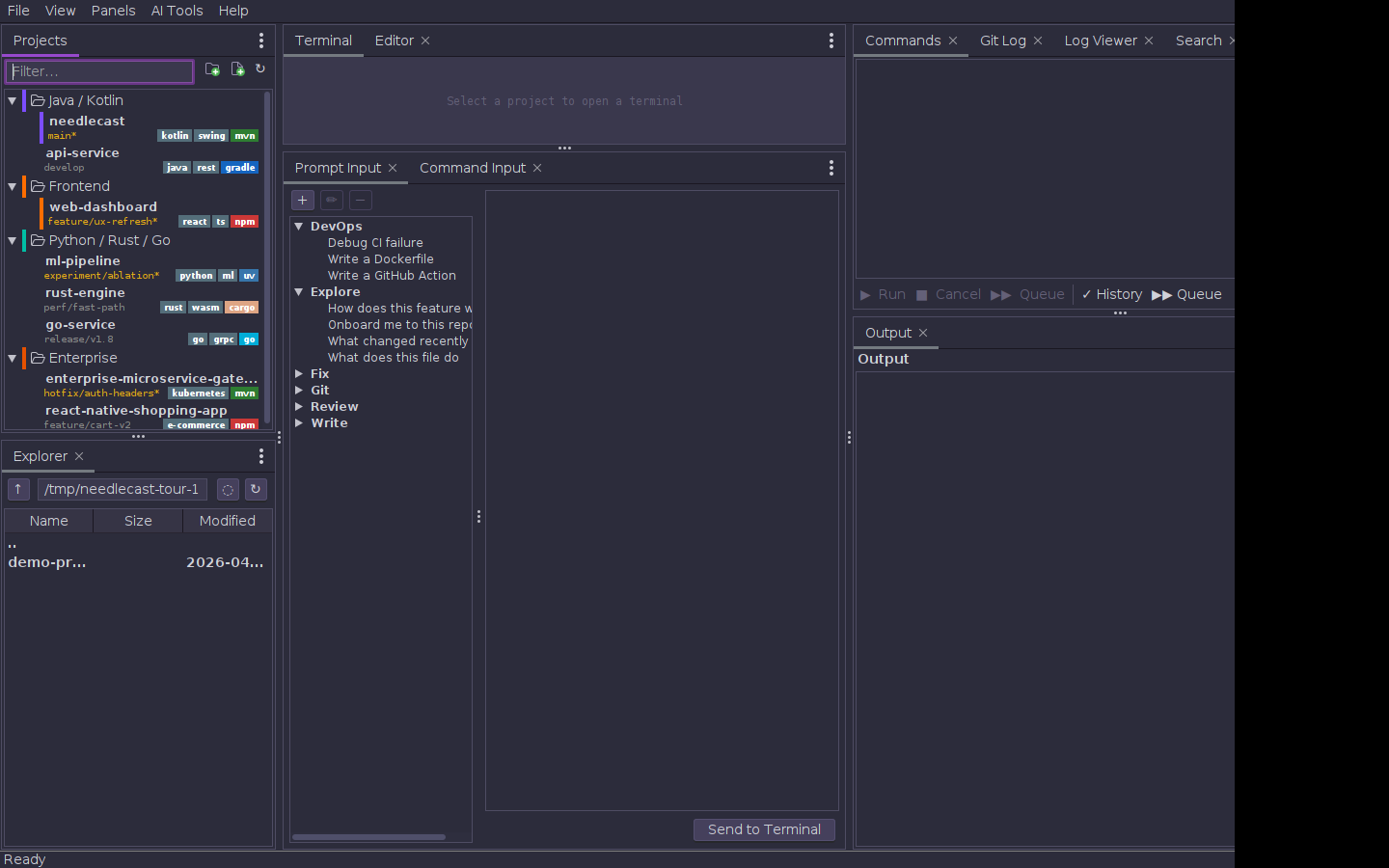
Organize your projects into logical groups with custom colors. Each group gets a distinct color in the sidebar, making it easy to visually distinguish between different contexts. Right-click anywhere in the tree to create new folders and drag projects between them.
Fuzzy Project Switcher
When you need to jump between projects quickly, press Ctrl+P (or Cmd+P on macOS) to open the fuzzy project switcher. Type a few characters from any part of the project path or name, and Needlecast will instantly filter the list. The switcher searches across all groups, so you don’t need to remember which folder contains a particular project.
Git Status at a Glance
Needlecast automatically detects git repositories and shows their status:
- Clean projects show their current branch
- Dirty projects show a modified indicator (●)
- Ahead/behind status is visible for tracked branches
- Detached HEAD state is clearly indicated
This means you can see at a glance which projects have uncommitted changes, helping you avoid accidentally committing to the wrong repository.
File Watcher Auto-Refresh
When you modify build files (like pom.xml, build.gradle, package.json), Needlecast automatically rescans and updates the command list. No manual refresh needed — your available commands always stay in sync with your project configuration.
Environment Variables Per Project
Each project can have its own environment variables, injected into every command and terminal session. This is perfect for projects that need specific API keys, database connections, or configuration values. Variables are stored securely and only applied when working within that specific project.
Quick Navigation
- Double-click a project to open its directory in the file explorer
- Right-click for context menu: open in terminal, edit environment variables, or remove from tree
- Drag and drop to reorder projects within a group
- Export/Import your entire project tree configuration
Getting Started
- Add your first project: Right-click the tree → “Add Project”
- Create groups: Right-click → “New Folder”
- Customize colors: Right-click a folder → “Change Color”
- Start switching: Use
Ctrl+Pto jump between projects instantly
The project tree is designed to grow with you. Whether you have 5 projects or 500, Needlecast keeps everything organized and accessible.
Next up: Learn how Needlecast auto-detects commands across 14+ build tools in our next post.